7 Keyboard Shortcuts That Fix Typos Without Killing Your Flow
You notice the typo after finishing the word. Now you can tap Backspace several times, or use a word-level shortcut to remove the part you want to replace. The second option is especially useful when a whole word has come out scrambled.
These shortcuts help with editing. They do not prevent the original error, and some apps override the usual behavior. Try them in a disposable text field before relying on them in important work. The references are Microsoft’s Windows shortcuts and Apple’s Mac shortcuts.
Use the keyboard shortcuts practice tool to drill the editing combinations for Windows or Mac without changing an important document.
Delete the word to the left
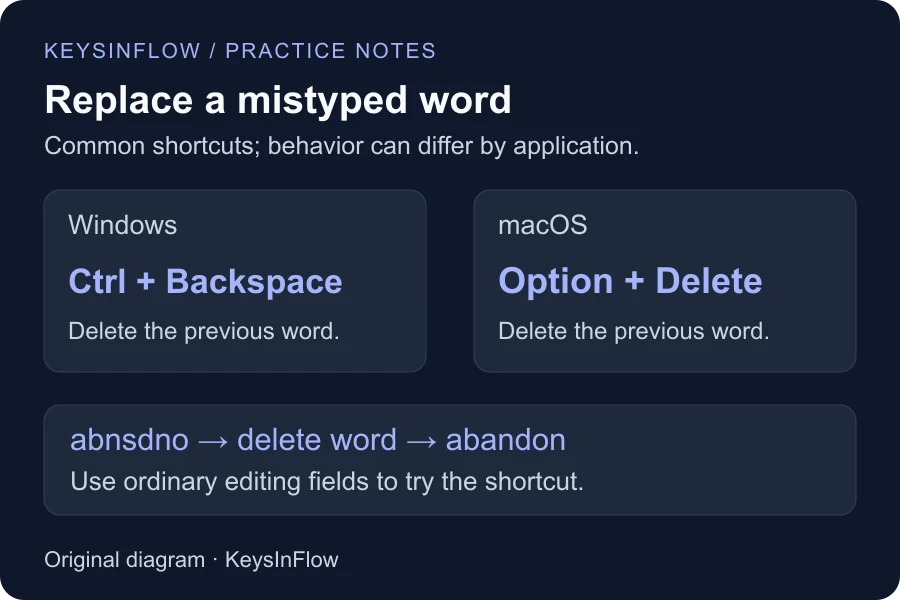
Windows commonly uses Ctrl+Backspace; macOS commonly uses Option+Delete. If you typed “abnsdno” instead of “abandon,” the shortcut can remove the previous word so you can enter it again.
For one wrong character immediately behind the cursor, ordinary Backspace may be the more direct correction. Choose the size of the edit from the size of the mistake.
Jump by word instead of by character
Use Ctrl+Left/Right on Windows or Option+Left/Right on macOS to move across words in compatible text fields. This helps when the mistake is several words back.
Select by word to replace text
Add Shift to the word-jump shortcut: Ctrl+Shift+Left/Right on Windows, or Option+Shift+Left/Right on macOS. Type to replace the selected text. Check the selection before typing, especially around punctuation and word boundaries.
Move to the start or end of the line
In many Windows editors, Home and End move to the line boundaries. On macOS, Command+Left/Right commonly moves to the beginning or end of the current line. Home and End can behave differently on a Mac, so they are not interchangeable instructions for both systems.
Delete a word to the right
Windows commonly uses Ctrl+Delete. Mac keyboards commonly use Fn+Option+Delete for forward word deletion. This is useful after positioning the cursor before unwanted text; application support can vary.
Undo an unwanted change
Use Ctrl+Z on Windows or Command+Z on macOS. Editors group undo actions differently, so the command may reverse a word, a paste, or a larger editing action. Inspect the result before pressing it again.
Redo if you undid too much
Windows commonly uses Ctrl+Y, while macOS commonly uses Shift+Command+Z. Some editors use a different redo binding. Check the app’s Edit menu when a shortcut does not behave as expected.
Keep editing practice separate from typing tests
A constrained typing tool may intentionally intercept shortcuts or restrict cursor movement. Follow its rules rather than assuming every operating-system shortcut is available inside the drill. Practice editing commands in your actual editor.
If the same typo keeps recurring, inspect its cause with the weak-key analyzer and practice it in fresh sentences. Our Backspace guide explains how to compare correction work, while the scrambled-word guide helps you investigate errors such as “abnsdno.”
Frequently asked questions
Will shortcuts increase my WPM?
They may reduce the number of actions required for a particular edit. They do not guarantee a faster test score, and they do not train the letter sequence that produced the error.
Can Undo reverse autocorrect?
In some apps, using Undo immediately reverses the replacement. In others it can undo a larger action. Check the result and the app’s own instructions.