QWERTY vs. Dvorak vs. Colemak: Should You Switch?
Choose a keyboard layout by the computers you use, the shortcuts you depend on, and the time you want to spend relearning key positions. Switching to Dvorak or Colemak does not guarantee a higher WPM score. If your immediate goal is a typing test on a shared keyboard, practicing the layout used for that test is the more direct preparation.
Use the keyboard layout visualizer to compare the arrangements before changing system settings. Selecting a diagram on KeysInFlow does not change your operating system’s input layout.
QWERTY: keep familiar positions
QWERTY is the starting point for KeysInFlow’s finger and beginner lessons. Staying with it lets you focus on accuracy, finger transitions, and reading the next word without also learning a different map of the keyboard.
This is a practical advantage if you use shared computers or already rely on familiar shortcut positions. It is not proof that QWERTY is the fastest possible layout for every person or task.
Dvorak: expect a substantial change
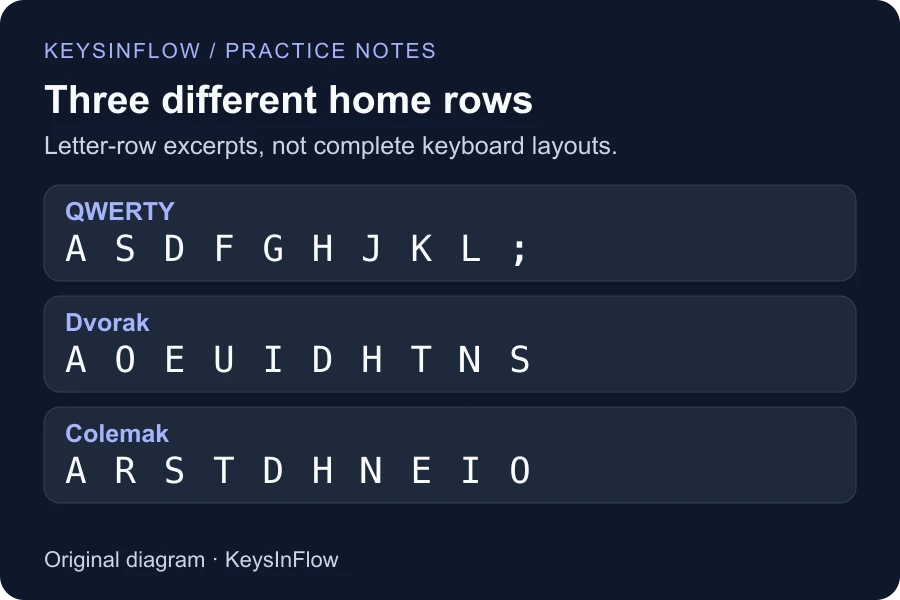
Compare the Dvorak diagram with QWERTY in the visualizer. Many letter positions differ, so familiar word patterns and shortcuts may require conscious attention while you learn. Consider how often you will need to move between layouts during ordinary work.
A layout diagram can explain where letters move, but it cannot predict your personal speed after retraining. Judge the change through actual practice on the intended configuration rather than a promised percentage improvement.
Colemak: retain some familiar shortcuts
The official Colemak project presents Colemak as an alternative for English touch typing. Its design retains several familiar shortcuts, including Ctrl+Z, X, C, and V. The project also links to installation instructions and the separate Colemak-DH variant.
Preserving those positions can reduce one part of the adjustment, but you still need to learn the changed letters. Check the instructions for your operating system and the exact variant you intend to use. The standard Colemak diagram and a Colemak-DH arrangement are not interchangeable.
Separate learning a layout from testing it
First inspect the positions. Then, if you choose to switch, configure the operating system using its own settings and practice slowly. A typing website normally receives the characters produced by that configuration; viewing a different diagram alone does not remap your keys.
KeysInFlow’s keyboard tester can help you inspect the input your browser receives. The visualizer is a comparison tool, not a full Dvorak or Colemak course. Use learning material that matches your selected layout when building new finger habits.
Improve your current typing before deciding
Take a baseline with the typing test and examine repeated errors with the weak-key analyzer. A problem with a few transitions may have a more focused solution than changing the entire layout.
If you still want to experiment, keep separate records for each layout and compare similar passages after you have had time to practice. Consider everyday convenience as well as your best score. A layout that suits your personal computer may be inconvenient on a shared workstation, even if you enjoy using it at home.