Top 5 Keyboard Keys for Software Engineers: A Practical Guide
You have found the bug. Now comes the smaller work around it: opening the right file, selecting the faulty text, accepting a suggestion, and removing the extra character you just typed.
Those movements happen between the interesting parts of programming. Getting comfortable with a few keys can make them less distracting.
Five useful keyboard keys for software engineers are Ctrl or Command, Shift, Tab, Escape, and Backspace. Together, they help you navigate, select, complete, dismiss, and correct text. This is a practical editorial selection, not a measured ranking of which keys programmers press most.
The examples below use VS Code. Other editors, keyboard layouts, extensions, and custom keymaps can assign different actions. Ctrl and Command occupy one place in this list because they serve a similar role in many of these shortcuts; they are different physical keys and are not interchangeable everywhere.
1. Ctrl or Command: reach the file or command you need
Copy and paste are useful, but opening a file directly is a good next habit to learn.
In VS Code, press Ctrl+P on Windows/Linux or Command+P on macOS, then type part of a filename. You can open the file without stepping through the project folders. Add Shift—Ctrl+Shift+P or Command+Shift+P—to open the Command Palette, where you can search for an editor action.
These bindings appear in VS Code’s official Windows and macOS shortcut references.
Suppose you need to inspect a function in billing.ts. Quick Open gets you to the file. If you want an editor action but cannot remember its shortcut, the Command Palette gives you a way to find it by name. You do not have to memorise every binding to start using the keyboard more deliberately.
Try this: open three files you regularly work on using Quick Open. Practise the real filenames, not a list of shortcuts you rarely need.
2. Shift: select the text before changing it
Shift does more than capitalise letters. In text editing, Shift+Left or Shift+Right Arrow extends a selection one character at a time. That is useful when you want to replace a small piece of text without dragging across it with the mouse. Apple documents this behaviour in its text-editing shortcuts.
Imagine the cursor sits just after countt. Hold Shift and press Left once to select the extra t, then replace or remove it. For a larger change, inspect the editor’s word-selection or expanded-selection commands rather than tapping an arrow dozens of times.
Shift also modifies other actions. In the VS Code examples above, adding it changes Quick Open into the Command Palette. The useful habit is to learn the action a combination performs, not to assume Shift always means “do the opposite.”
Try this: in a scratch file, select a short identifier with Shift and the arrows, then replace it. A manual text replacement is not a project-wide symbol rename; use the editor’s rename feature when references need to change too.
3. Tab: move through indentation and snippet fields
Tab is easy to mistake for “insert a tab character.” In an editor, its action depends on the context. It may indent, accept a selected suggestion, or move to the next field in a snippet.
VS Code snippets can contain numbered placeholders. After inserting one, Tab moves to the next placeholder, letting you fill in a name or value without clicking each location. The official snippet documentation explains the traversal order and distinguishes it from expanding a snippet by typing its prefix. Prefix expansion through Tab requires the appropriate tab-completion setting.
For example, a loop template may offer fields for the collection and the item name. Tab helps you move through those fields in sequence. Read the inserted code as you go; accepting a template does not establish that it is correct for your task.
Indentation is a separate issue. Pressing Tab can insert spaces if the editor is configured that way. Follow the repository’s formatter and indentation settings rather than changing a file to match your personal preference. VS Code’s basic-editing guide describes indentation detection and configuration.
Try this: use Insert Snippet in a scratch file, then move through its fields. Notice what Tab does there compared with an ordinary line.
4. Escape: dismiss a temporary view and return to the code
An editor can accumulate temporary layers: a suggestion list, a search interface, or a peek view containing a definition. Escape is useful for stepping out of the current interaction.
For example, VS Code documents Escape as a way to close its peek editor in the code-navigation guide. That lets you inspect a definition and return to the surrounding code without leaving the temporary view open.
The setting editor.stablePeek can keep a peek view open when Escape is pressed, so check it if your editor behaves differently.
Escape is context-sensitive. It is not a universal undo button and does not reliably stop a running program. A terminal, a debugger, and an editor popup are separate contexts with their own controls.
Try this: open a peek definition for a symbol in your project, inspect it, and close it with Escape. Learn one specific use before expecting the key to clear every kind of panel.
5. Backspace: correct the small mistake cleanly
Backspace removes text before the cursor when there is no selection; when text is selected, deletion acts on that selection. On many Mac keyboards, the backward-delete key is labelled Delete, so the keycap name can be confusing.
Apple’s shortcut guide documents Option+Delete for deleting the word to the left and Fn+Delete for forward deletion. Check the corresponding command in your editor before assuming a Windows/Linux combination maps directly to Command on a Mac.
The practical skill is choosing how much to remove. An extra character needs a small correction. A wrong identifier may be easier to select and replace. Neither calls for holding Backspace until you accidentally erase the punctuation around it.
If you keep making the same error, work on the original sequence too. Our guide to fast typing and wrong keys explains how to distinguish a wrong reach from letters arriving in the wrong order.
Try this: make one deliberate typo in a scratch file. Correct it, then retype the line accurately. The aim is a clean repair, not a faster mistake-and-delete cycle.
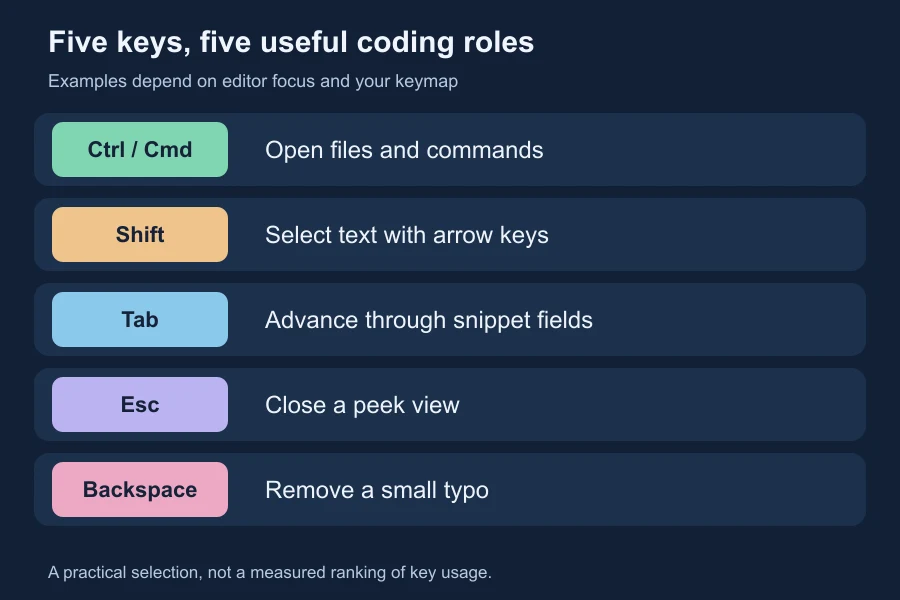
A quick reference for your next coding session
| Key | Start with this task | Check first |
|---|---|---|
| Ctrl / Command | Open a known file with Quick Open | Your platform’s binding |
| Shift | Select a few characters with the arrows | Cursor position and selected text |
| Tab | Move through a snippet’s placeholders | Whether a snippet or suggestion is active |
| Escape | Close a peek view | Which interface currently has focus |
| Backspace / backward Delete | Remove a small typo | Whether text is selected |
When a key does something unexpected, check the binding rather than repeating it harder. VS Code’s keyboard-shortcut settings show assigned commands and their conditions, including which part of the interface must have focus.
What about brackets, semicolons, and function keys?
They matter too. The symbols you need depend on your language and keyboard layout, while function keys depend heavily on the editor. A Python session and a TypeScript session ask for different punctuation practice.
This list focuses on editing actions you can use around either language. For entering code itself, use code typing practice and our guide to practising programming text. Learn the symbols in a meaningful line instead of treating them as a random obstacle course.
Frequently asked questions
Are these the most-used keys in programming?
This article does not claim that. They are five useful starting points chosen for common editing tasks. Language, editor, and working habits change which keys you use most.
Should I replace Ctrl with Command for every Mac shortcut?
No. Many common app actions use Command, but others use Control, Option, or a different combination. Check the macOS reference for the actual command.
Why does Tab move focus instead of indenting?
The editor may be in a focus-navigation mode, or a different interface may have focus. Check the relevant mode and active panel in your editor before changing indentation settings.
Pick one action you repeat today—opening a file, filling a snippet, or repairing an identifier—and practise its key deliberately. That gives the shortcut a place in your work, which is more useful than memorising five combinations and forgetting when to use them.