Should You Lift Your Wrists or Rest Them While Typing?
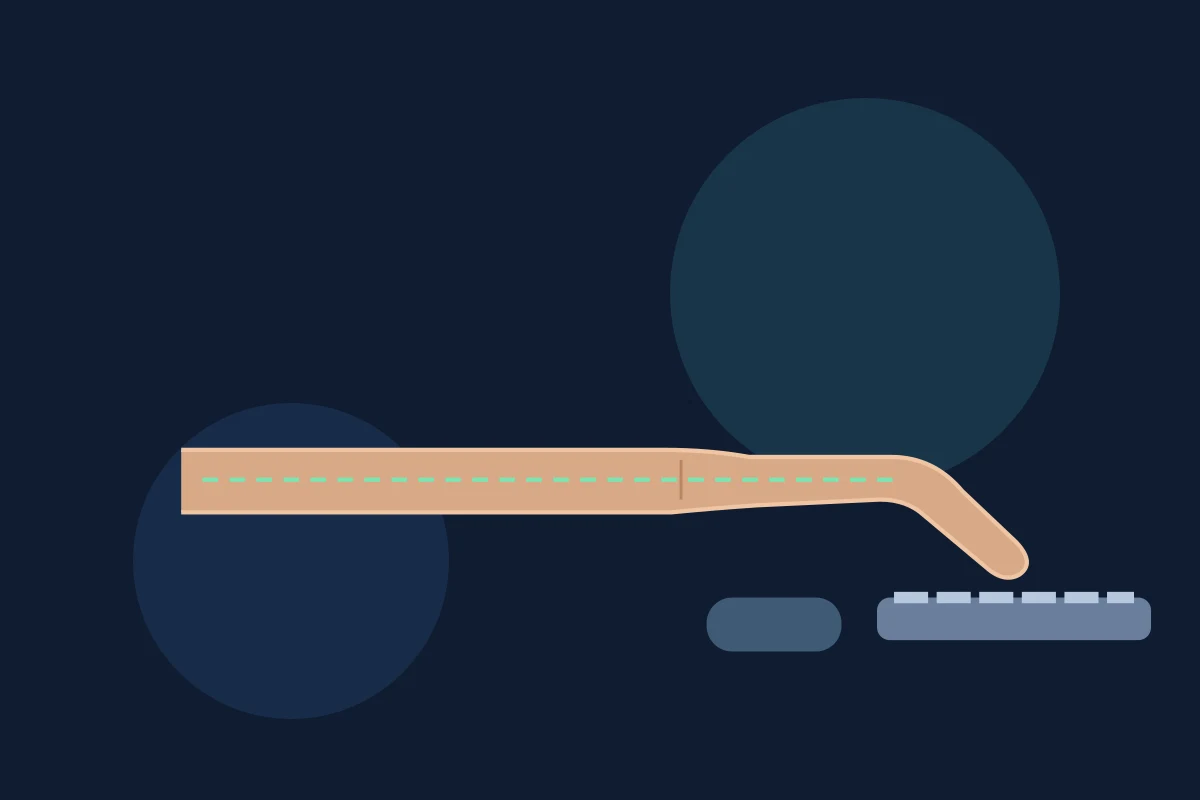
You settle into a typing session and notice your wrists sitting on the desk. Lift them, and the keys feel easier to reach—but now your shoulders start doing more work. Put them down, and the position feels familiar again.
So, should you lift your wrists or rest them while typing?
While typing, keep your wrists straight and let your hands move freely above the keyboard or palm support. During pauses, you can rest the heel of your palms on a suitable support. Lifting your hands slightly does not mean bending your wrists upward or holding your arms high. This distinction follows OSHA’s wrist and palm support guidance.
The useful question is what happens at your wrist when your fingers reach a key. Is your hand still roughly in line with your forearm? Is anything pressing into the underside of the joint?
Floating wrists vs. resting wrists: what changes?
People use “resting” to describe several different positions. Supporting a forearm, placing the base of a palm on a cushion, and pressing a wrist into a desk edge are different actions.
| Position | What to notice | Practical guidance |
|---|---|---|
| Hands moving freely during typing | Wrist stays aligned with the forearm | Keep movement relaxed; avoid exaggerating the lift |
| Wrists planted while fingers reach | Pressure under the wrist or restricted movement | Change the setup rather than anchoring the joint |
| Palms supported during a pause | Cushion touches the heel of the hand | Keep direct pressure off the wrist |
| Forearms supported on armrests | Shoulders stay relaxed and keyboard remains within reach | Adjust support so it does not obstruct movement |
The final row matters. “Float your hands” does not require suspending your entire arms. OSHA’s chair guidance describes adjustable armrests that support the lower arms while keeping the upper arms near the body. Armrests that make you shrug or prevent you from getting close to the keyboard need adjusting.
What does a neutral wrist position look like?
A neutral wrist sits roughly in line with the forearm, without a pronounced bend upward, downward, or sideways. CCOHS’s keyboard guidance uses this alignment as the aim when adjusting a workstation.
Imagine drawing a line along the back of your forearm toward your hand. A sharp change in direction at the wrist is a reason to inspect your setup. This is a simple observation cue, not a measurement or a medical assessment.
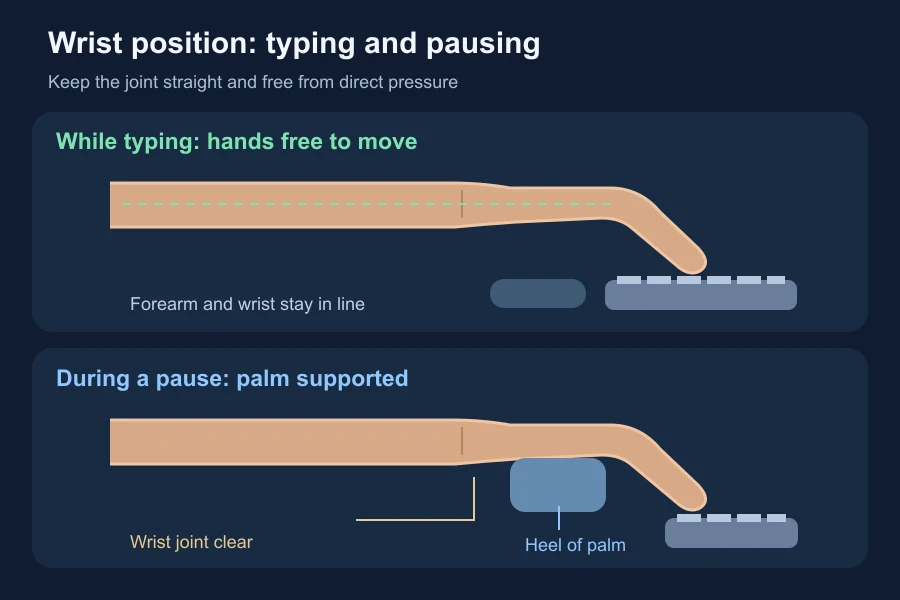
You do not need a large gap underneath your hands. Check the alignment first, then notice whether you are holding tension to maintain it.
Is a keyboard wrist rest beneficial?
It can be useful, depending on the workstation and how you use it. The product name is easy to misunderstand: a “wrist rest” is not an invitation to lean heavily on the wrist joint.
CCOHS’s wrist-rest guidance, revised in April 2026, discusses both the possible support benefits and the problems caused by excessive contact pressure. It also distinguishes wrist contact from support beneath the base of the palm. A padded accessory cannot compensate for every mismatch between your chair, desk, and keyboard.
If you use a support, OSHA recommends a soft, rounded surface matched to the keyboard’s front edge. Keep your hands free while entering text and use the palm area when resting. A cushion that forces your wrists into a bend defeats its purpose.
Buying a wrist rest is optional. Start by checking what your current setup makes you do.
Adjust the keyboard before forcing a new habit
There is a common trap here: treating an awkward workstation as a failure of typing discipline. If the keys are too high, “keep your wrists straight” may leave you reaching upward. If they are too low, you may bend your hands down to find them.
OSHA’s keyboard guidance recommends positioning the keyboard in front of you, with relaxed shoulders, elbows near the body, and wrists aligned with the forearms. Work through the setup in that order:
- Bring the keyboard within comfortable reach. Notice whether you have to lean forward to type.
- Check its height against your elbows. Adjust the chair, desk, or keyboard surface as available. Support your feet if changing the chair height leaves them unsupported.
- Try the keyboard tilt. Its feet are an adjustment option, not an automatic improvement. Choose the setting that helps keep your wrists straight.
- Check where your arms make contact. A hard desk edge should not become the place you bear your weight.
Change one thing at a time. Otherwise, when the position feels better or worse, you will have little idea which adjustment mattered.
Will floating your wrists make you type faster?
The ergonomics guidance above does not establish a WPM advantage for floating your hands. A comfortable position and a high typing score are different outcomes.
Suppose you normally anchor your wrists and stretch for a distant letter. Letting your hand move may change how that reach feels. It does not automatically make the letter sequence accurate. You still have to learn the movement.
If a familiar word keeps coming out in the wrong order, our guide to typing fast but making mistakes addresses that problem directly. Wrist position should not become another reason to push through an uncomfortable session in pursuit of a score.
Try a short, relaxed setup check
Use an ordinary sentence before opening a timed test. This is a way to notice your setup, not to diagnose symptoms or prove one posture superior.
- Type a few lines at an easy pace. Look briefly at your wrists between sentences.
- Notice contact under the joint, a visible bend, or shoulders that rise as you reach.
- Make one adjustment and try another few lines.
- Pause with your hands off the keys. Notice whether you are still holding tension.
The HSE’s typing guidance recommends a light touch and avoiding overstretched fingers. Use that as a cue during the check: you should not need to hammer the keys to assess your position.
Keep breaks in the routine as well. HSE’s advice on screen-work breaks favours short, frequent breaks or changes of activity and opportunities to move or change posture. Holding one carefully arranged position all afternoon is not the goal.
If typing causes pain, reduce or stop the activity instead of practising through it. Seek medical advice for worsening or recurring wrist pain, pain that interferes with normal activities, or tingling or loss of sensation. NHS guidance on wrist pain explains these signs. Severe pain or inability to move the wrist needs urgent medical assessment.
Frequently asked questions
Should my wrists touch the desk while typing?
Avoid bearing weight directly on your wrists. Check whether contact with the desk limits movement or creates pressure, then adjust the setup. Forearm support is a separate question.
How high should I lift my wrists?
There is no useful universal gap to copy. Keep your hand aligned with your forearm and free to move, without an exaggerated lift.
Can I rest my hands between sentences?
Yes. That pause is an opportunity to relax your hands. If you use a palm support, let it meet the heel of the hand rather than press into the wrist joint.
Does a wrist rest prevent carpal tunnel syndrome?
This article does not establish that claim. Support design, pressure, workstation fit, and symptoms all matter; an accessory should not be treated as a medical safeguard.
Before your next session, check where your hands land when you finish a sentence. Then check what changes when you start typing again. Those two moments tell you more about your setup than the label on a wrist rest.